In this article we're going to show you how to hide and show certain fields or widgets based upon a previous input.
For this example we're going to build a simple form with a drop-down list that asks the user to supply a payment method from the following options:-
For this example we're going to build a simple form with a drop-down list that asks the user to supply a payment method from the following options:-
- Mastercard
- Visa Debit
- Cash
- Other
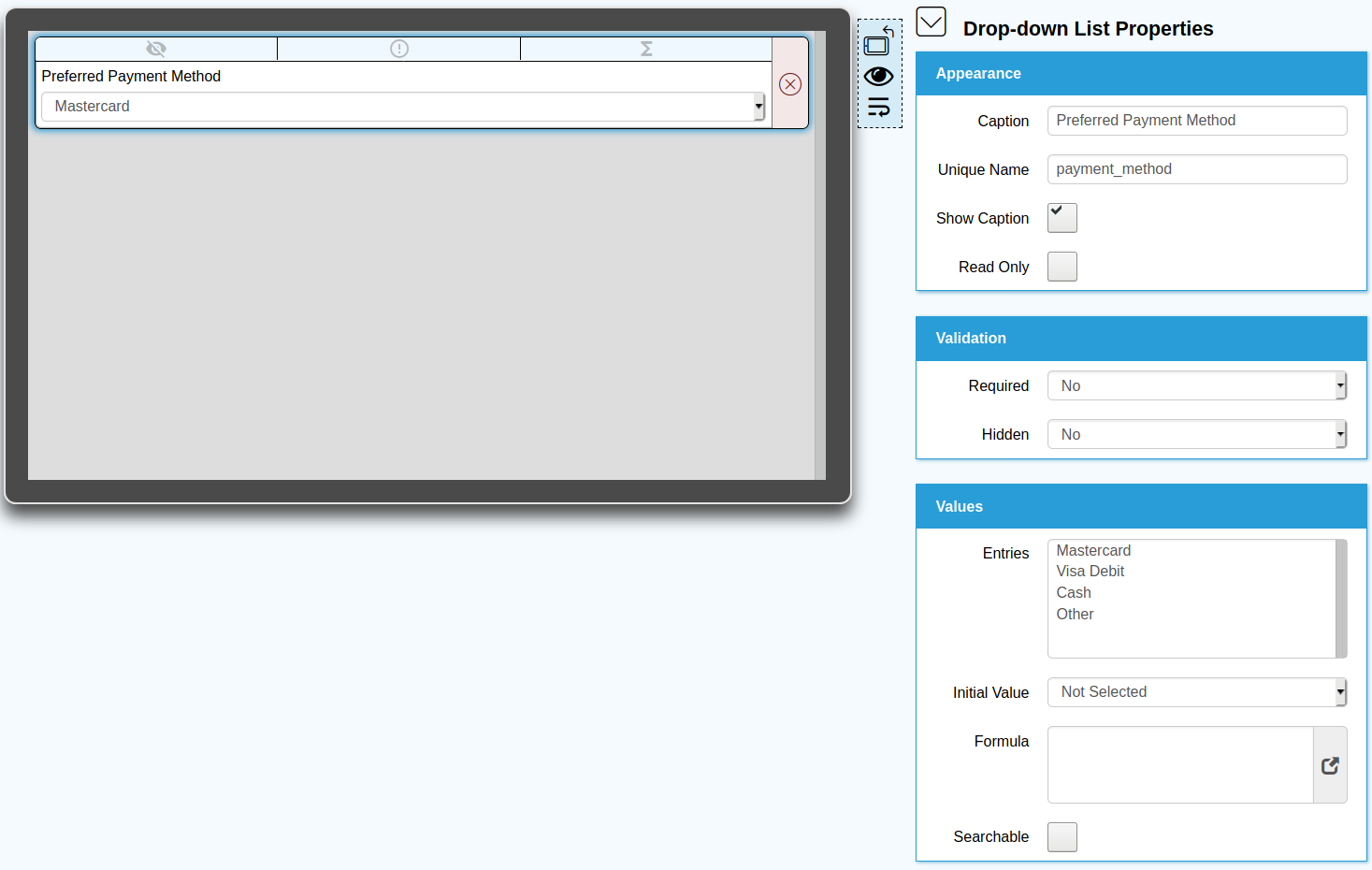
If the user selects other from the list, we'll then 'reveal' an additional text box to allow the user to type in their 'other' payment method. To begin, create a new form with a single dropdown list and configure as per screenshot below:
Tip
You'll notice that we've set the Unique Name property to payment_method. This just makes it easier to reference the widget when we refer to it within an expression, so rather than refer to it as 'Preferred Payment Method', we can use the simpler and shorter reference of 'payment_method'
Next, we're going to add the text box that we'll be using to capture 'other' payment method. In order to have this hidden until the user selects 'Other' from the payment method dropdown list, we'll need to add the following expression into the Hidden property:
=NOT('payment_method'="Other")
Your form should now look like the below:
=NOT('payment_method'="Other")
Your form should now look like the below:
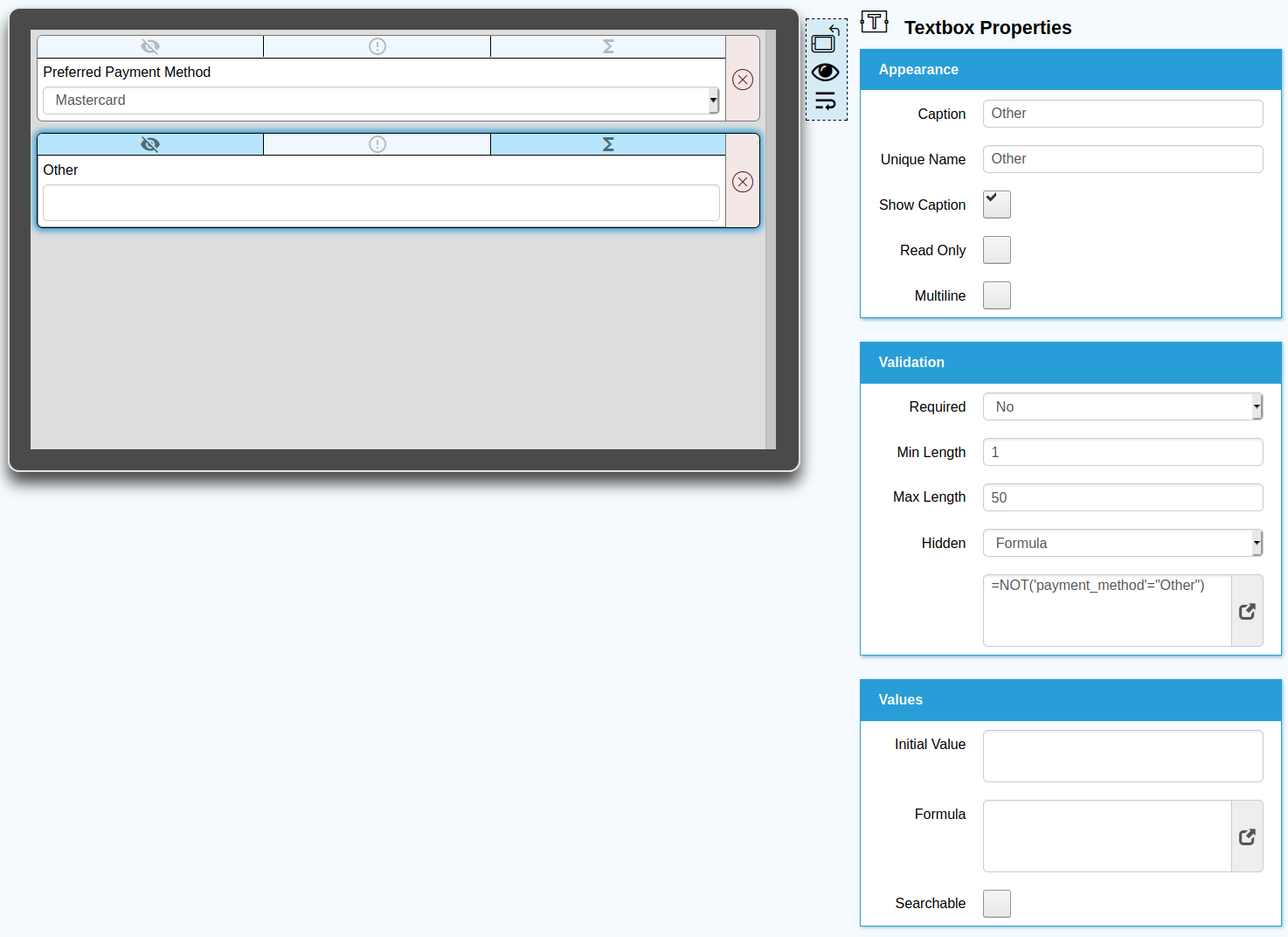
Effectively this is keeping the Other textbox widget hidden while the value of payment_method is not Other.
You can hide and show any widget on a form that has a hidden property.
Go ahead and try this on the App and you'll see that when you first load the form, the Other textbox won't be visible unless you select Other from the Preferred Payment Method.
You can hide and show any widget on a form that has a hidden property.
Go ahead and try this on the App and you'll see that when you first load the form, the Other textbox won't be visible unless you select Other from the Preferred Payment Method.