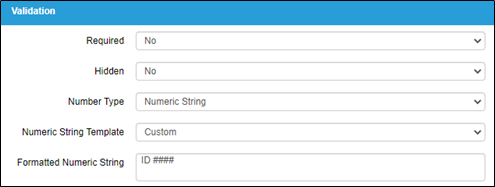
Formatted Numeric String gives Form builders the opportunity to create bespoke strings for their Mobile Users to capture in the field.
To use or create a Formatted Numeric String:
- Add a Number control within the Form Designer
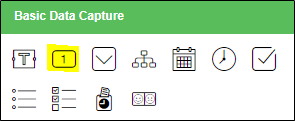
- Select "Numeric String" from the 'Number Type' drop-down within the Number Properties
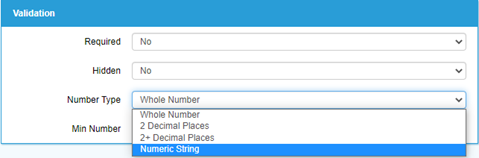
- The User can choose a pre-loaded Numeric String from the list within the ‘Numeric String Template’ drop-down or choose “Custom” to start designing their own.
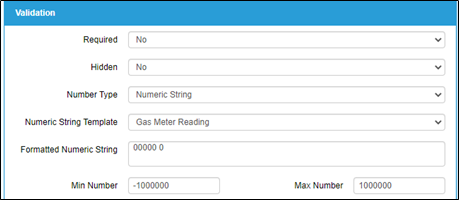
When it comes to designing a Custom Numeric String, these rely on using 0 or # characters:
- 0 means display a number here if it is entered otherwise display a zero – this is useful with strings such Gas Meter Readings which can have leading 0’s.
- # means to display a number here only if one is entered
You can also choose to include other characters which would be useful in your Formatted Numeric String. For instance, you may want to prefix your string with certain characters.